How to password-protect an endpoint in YakTunnel
Clients can't sign in to your YakTunnel account, but you still don't want a work-in-progress preview open to the whole internet. Password access lets anyone with the shared password open the link.
Before you start
- An administrator role
- An HTTP endpoint
Plays silently with captions; the narrated version is on its way.
Transcript
Share a preview with a client behind a password, without giving them an account.
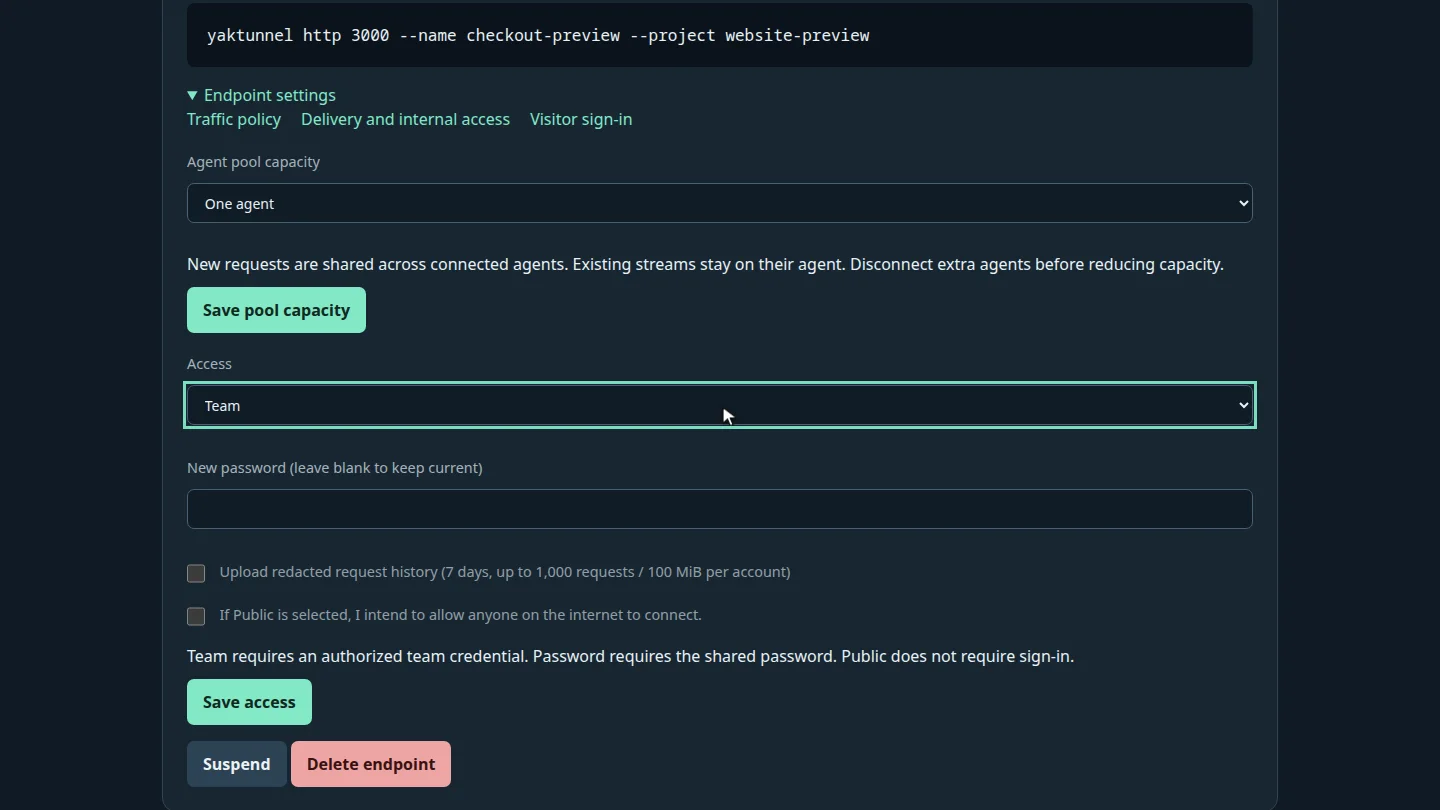
On Projects, open Endpoint settings on the card of the preview you want to share. Here, the checkout preview your client needs to review.
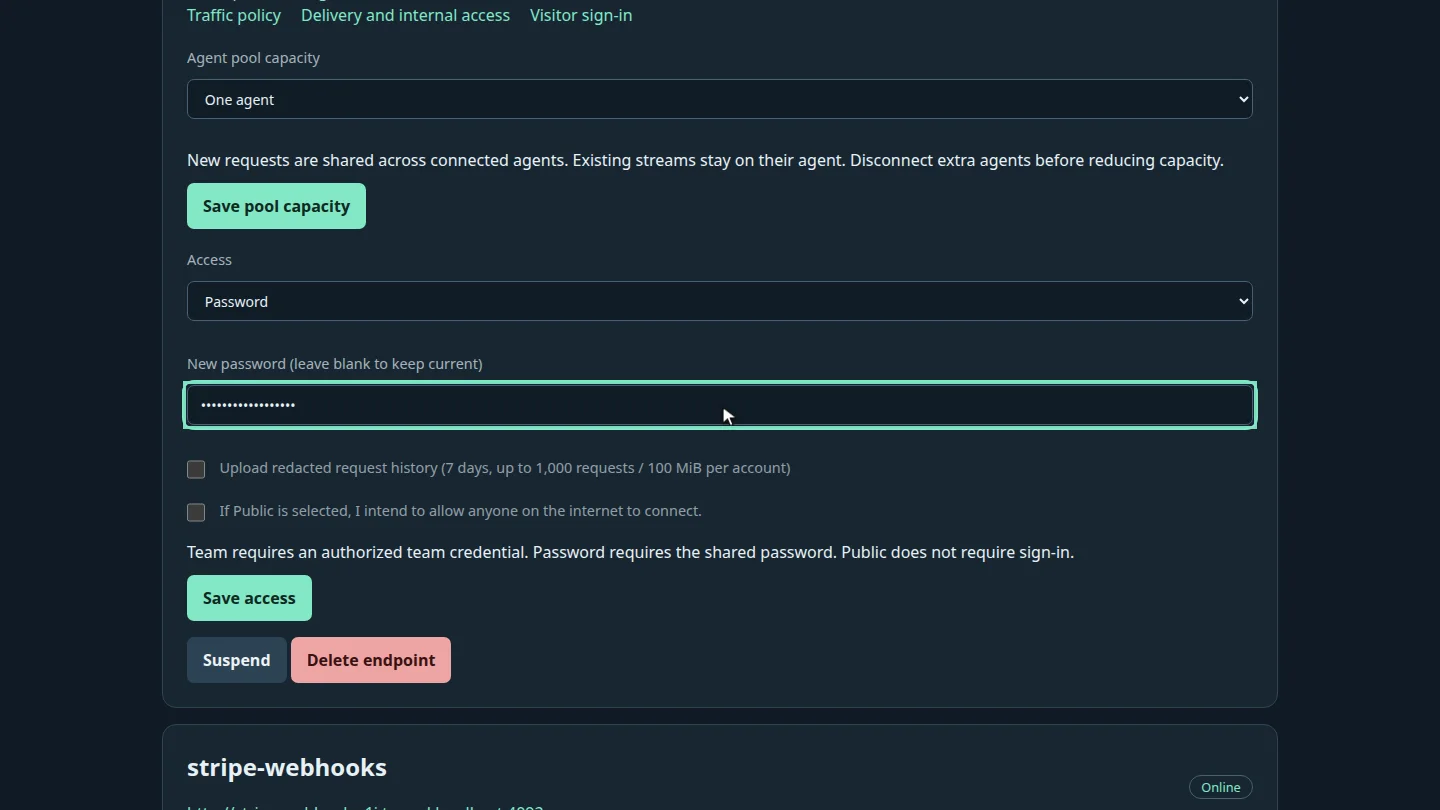
Set Access to Password and enter a password of at least twelve characters. Send it to your client separately from the link.
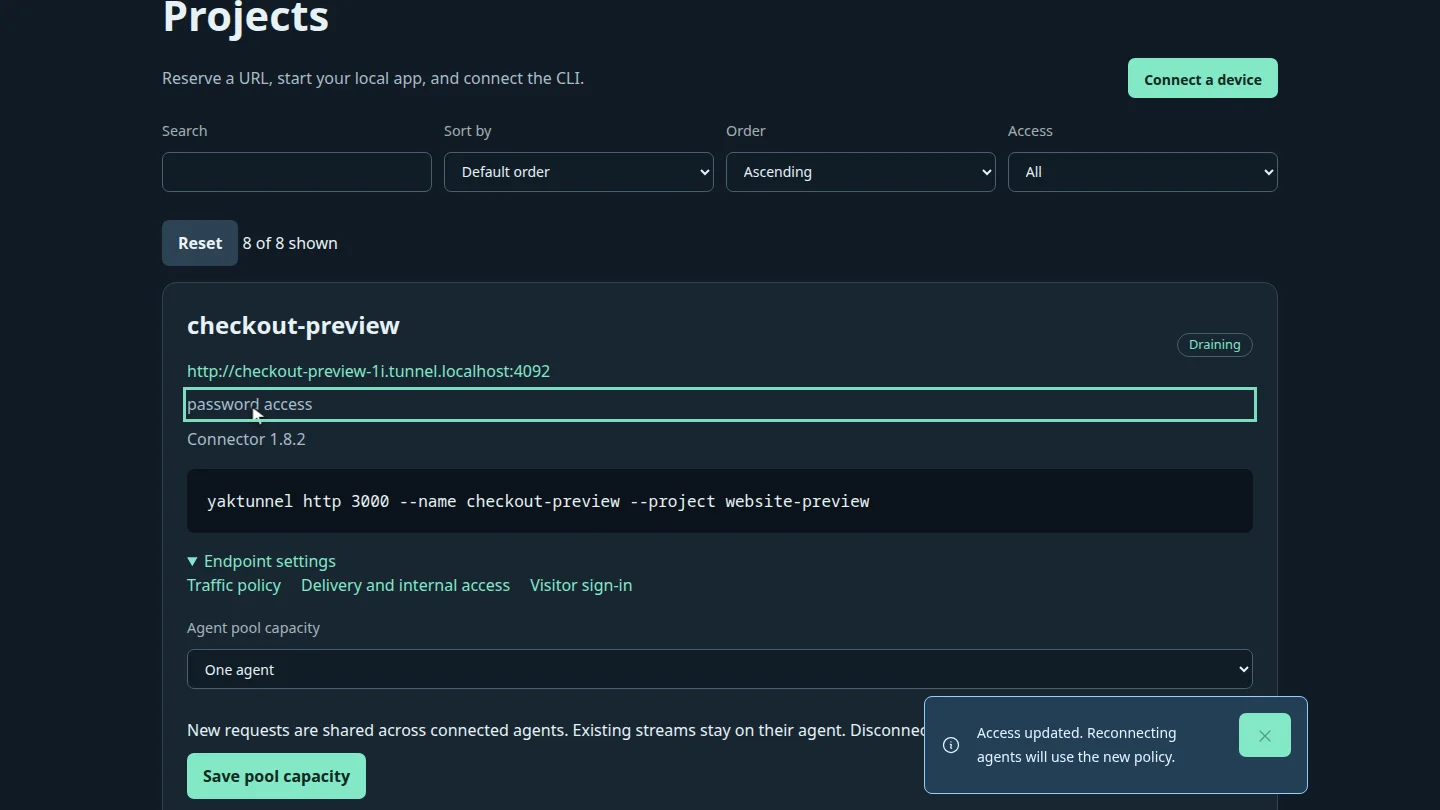
Select Save access. The card now reads password access. A running connector shows Draining until it reconnects with the new rule.
Steps
Open the endpoint's settings ▶ 0:07
In Projects, on the endpoint's card, select Endpoint settings.
Choose Password ▶ 0:17
For Access, choose Password, then enter at least 12 characters in New password (leave blank to keep current).
Save it ▶ 0:26
Select Save access. The card reads password access. A running connector shows Draining until it reconnects with the new rule.
Next steps
Updated 2026-10-26
password protect preview share with client access control basic auth tunnel