How to connect the YakTunnel CLI to your account
The yaktunnel command line tool starts tunnels on your behalf, so it needs its own sign-in. yaktunnel login prints a one-time code; approving it in the browser gives that computer a credential you can revoke later on Team.
Before you start
- A YakTunnel account with a verified email address
- The
yaktunnelCLI installed on the computer you want to connect
Plays silently with captions; the narrated version is on its way.
Transcript
Sign the YakTunnel command line tool in to your account by approving a one-time code.
In your terminal, run yaktunnel login. It prints a ten character code and opens this Connect your CLI page in your browser.
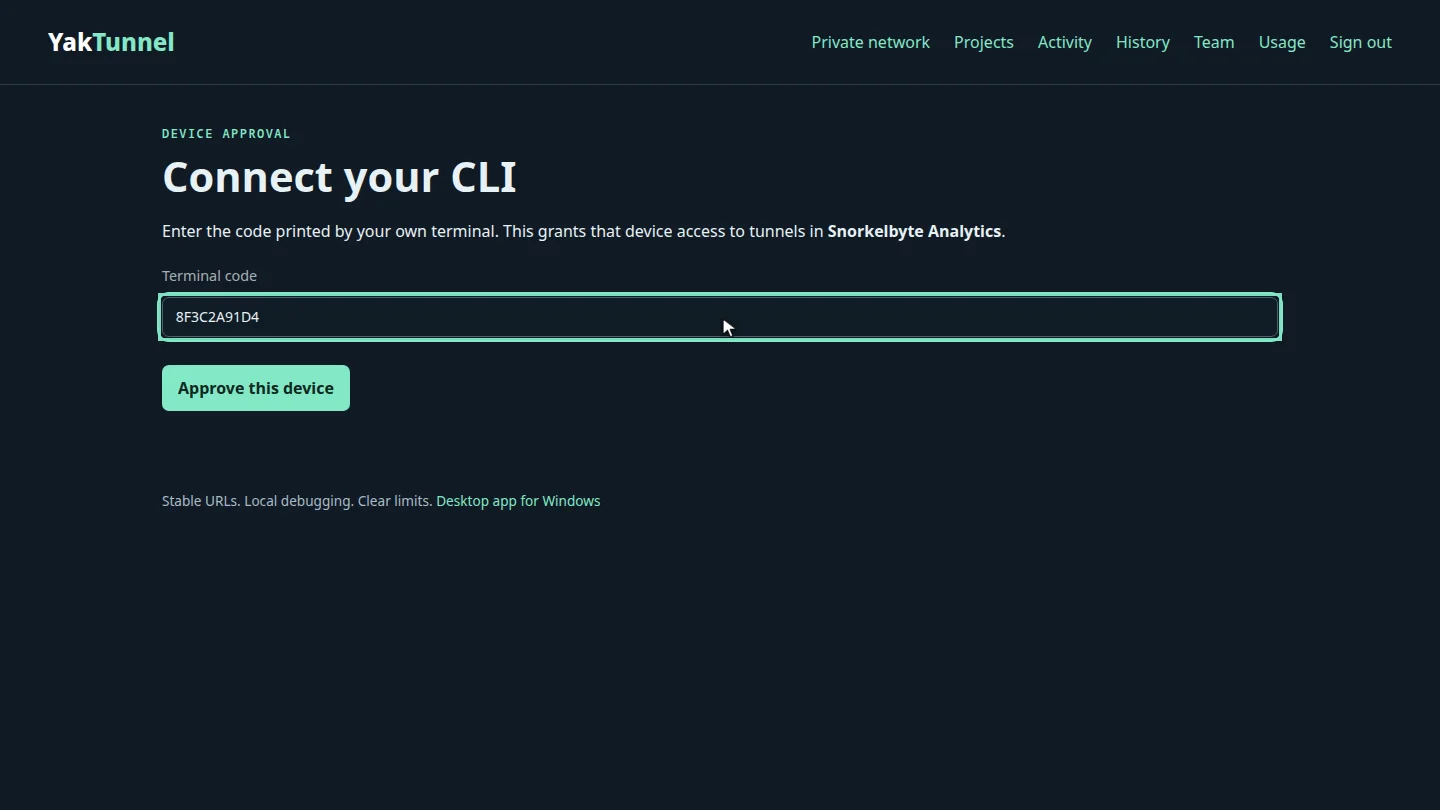
Type the code exactly as your terminal shows it. Only approve a code you started yourself, because approval gives that computer access to your tunnels.
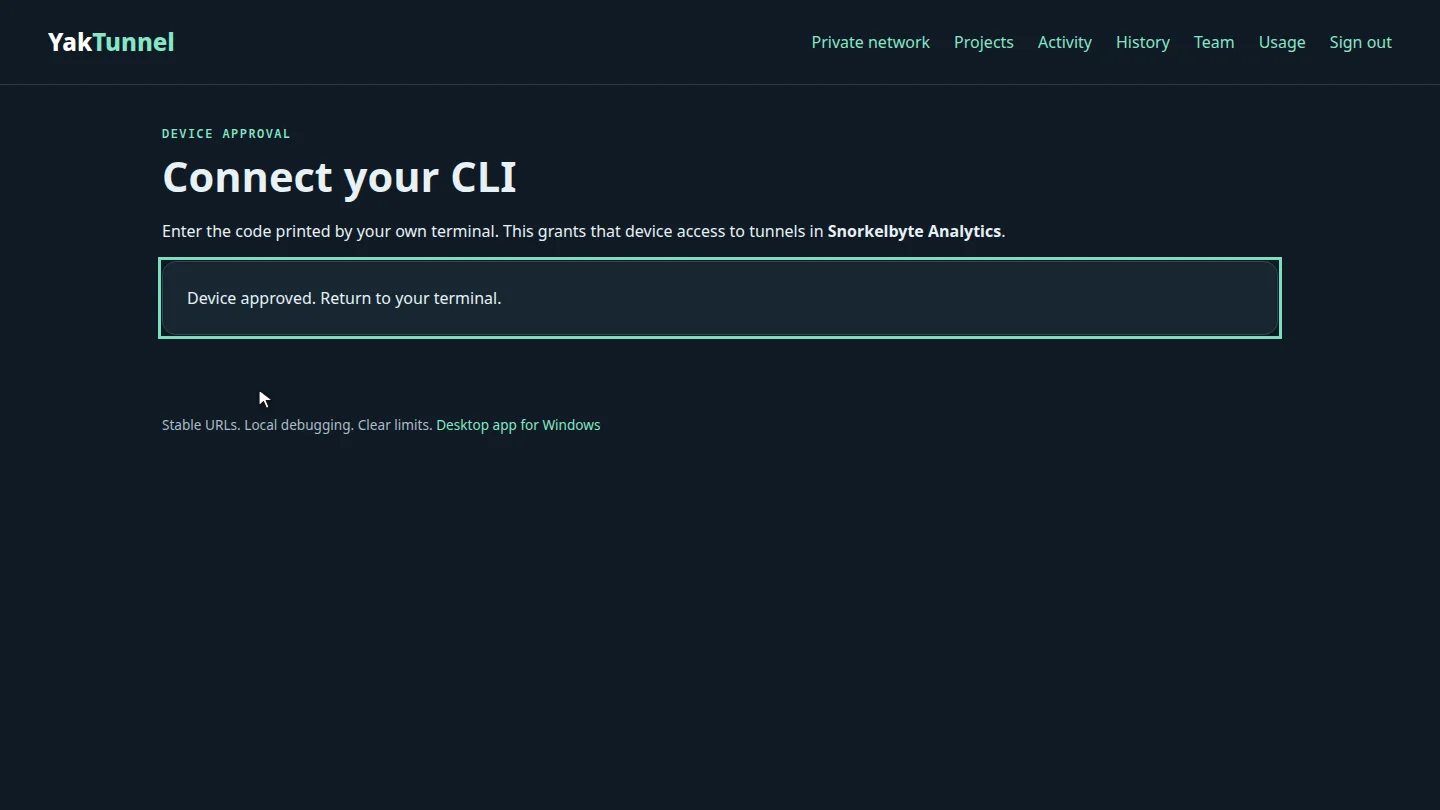
Select Approve this device. The page confirms the approval, and the terminal finishes signing in on its own.
Steps
Start the sign-in from your terminal ▶ 0:07
In a terminal, run
yaktunnel login. It prints a code and opens Connect your CLI. If the browser doesn't open, go to Projects and select Connect a device.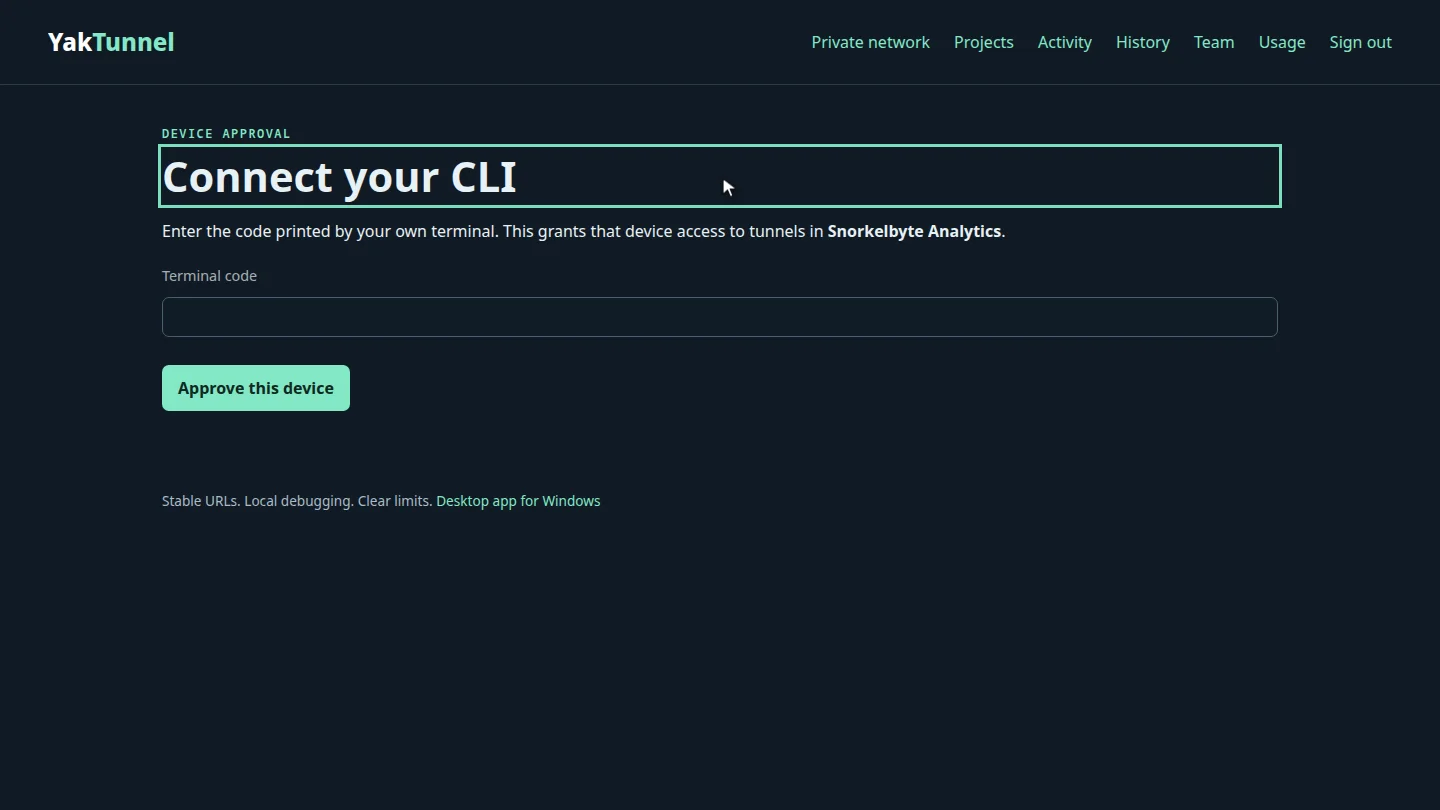
Enter the code ▶ 0:16
In Terminal code, enter the code from your terminal. Approve only a code you started yourself.
Approve the device ▶ 0:27
Select Approve this device. Device approved. Return to your terminal. appears and the CLI finishes signing in.
Next steps
Updated 2026-10-26
yaktunnel login cli sign in device code authorize cli