How to create an automation identity in YakTunnel
A CI job or staging server shouldn't use a person's laptop credential, which stops working when that person leaves. An automation identity owns its own keys, doesn't use a team seat, and can be limited to one endpoint.
Before you start
- An administrator role
Plays silently with captions; the narrated version is on its way.
Transcript
Give a CI job or server its own YakTunnel key, separate from anyone's personal login.
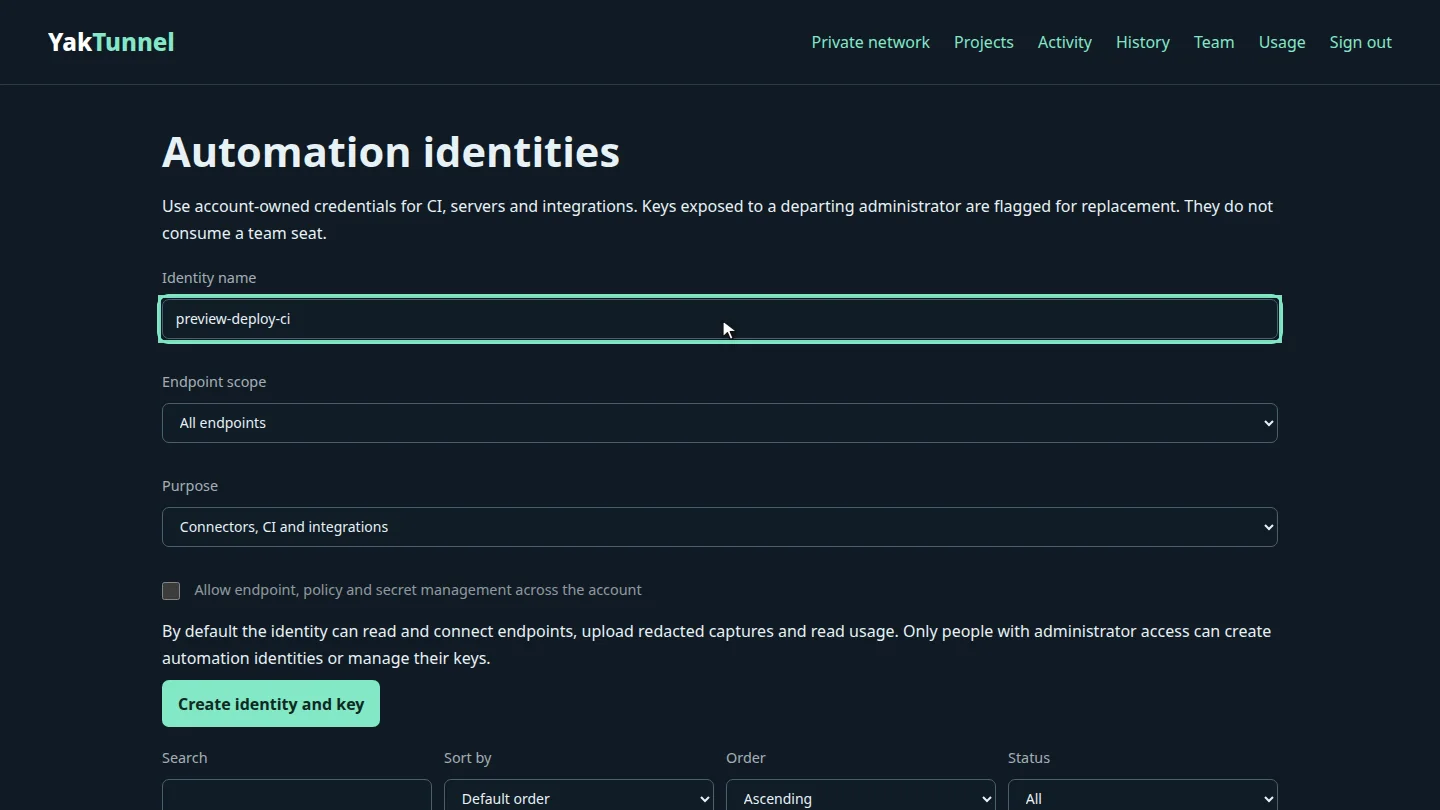
On Automation identities, name the identity after the job or server that will use it.
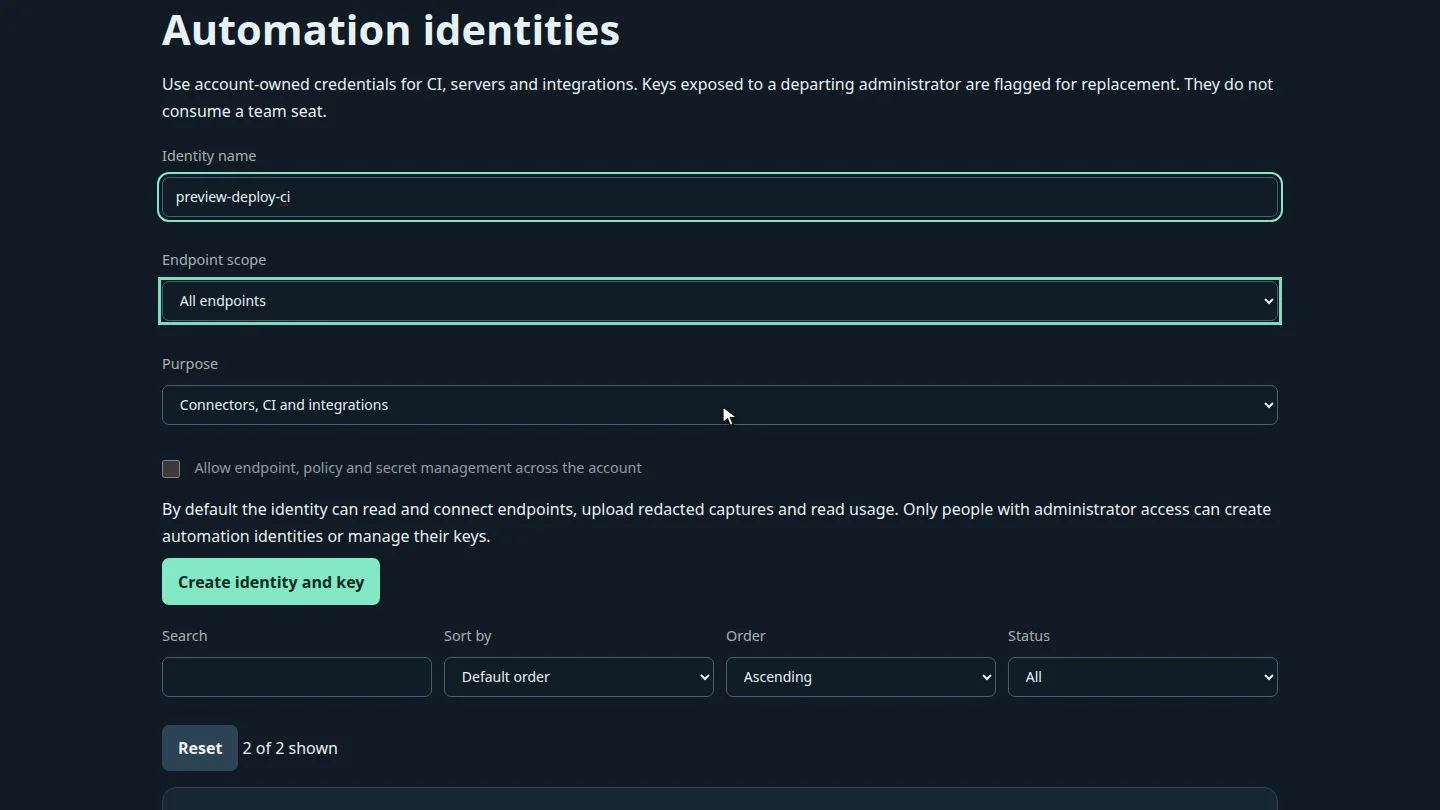
Choose an endpoint scope. All endpoints suits a CI pipeline; pick one endpoint for a single server. Keep the purpose on Connectors, CI and integrations.
Select Create identity and key. The key is shown only once, so copy it into your CI secrets as YAKTUNNEL TOKEN.
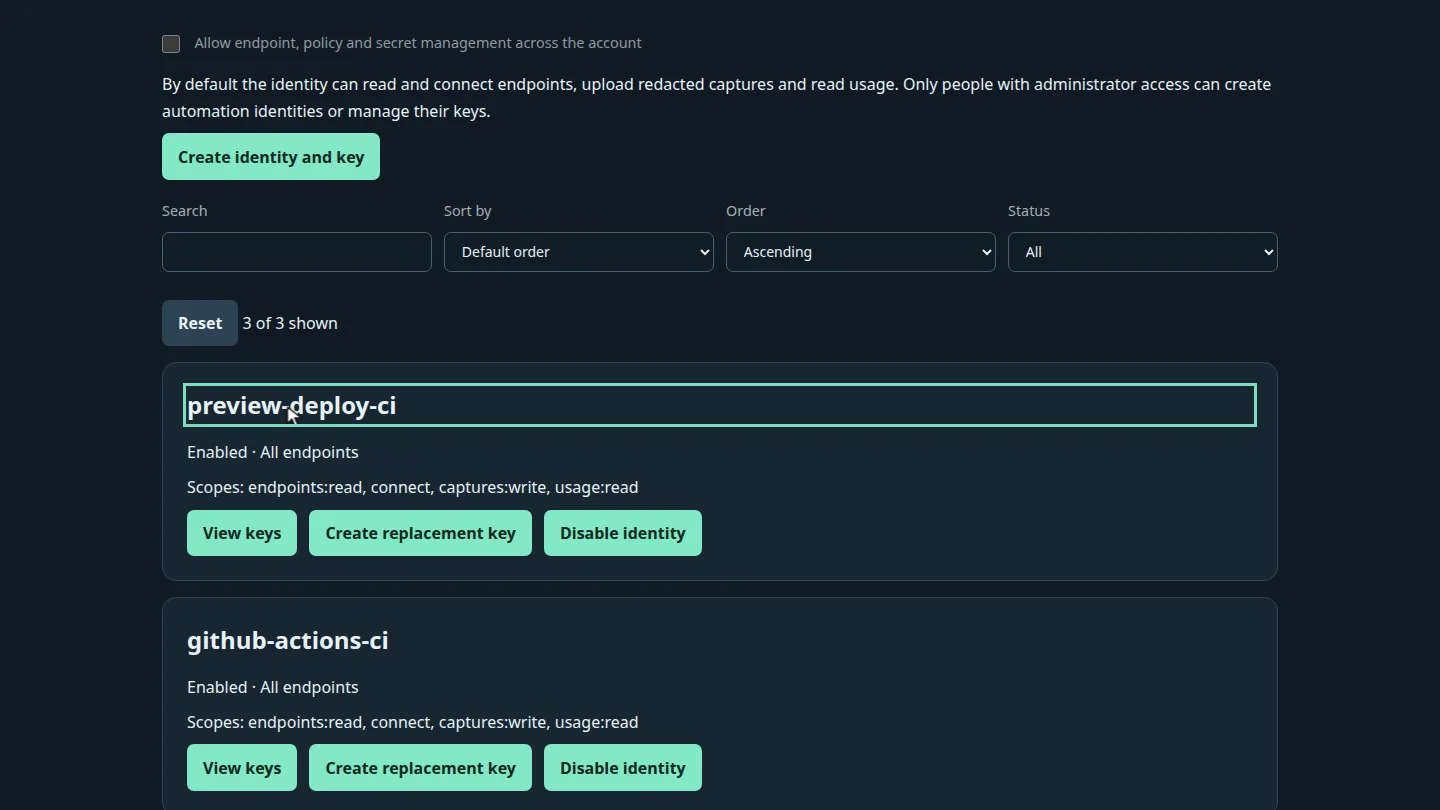
Select I have saved the key. The identity is listed as Enabled, ready for your pipeline.
Steps
Name the identity ▶ 0:07
Go to Team, select Manage automation identities, and enter an Identity name.
Choose its scope ▶ 0:13
For Endpoint scope, keep All endpoints or choose one endpoint. Keep Purpose at Connectors, CI and integrations.
Create it and save the key ▶ 0:25
Select Create identity and key. Under Save this key now, copy the key into your secret store as
YAKTUNNEL_TOKEN. It isn't shown again.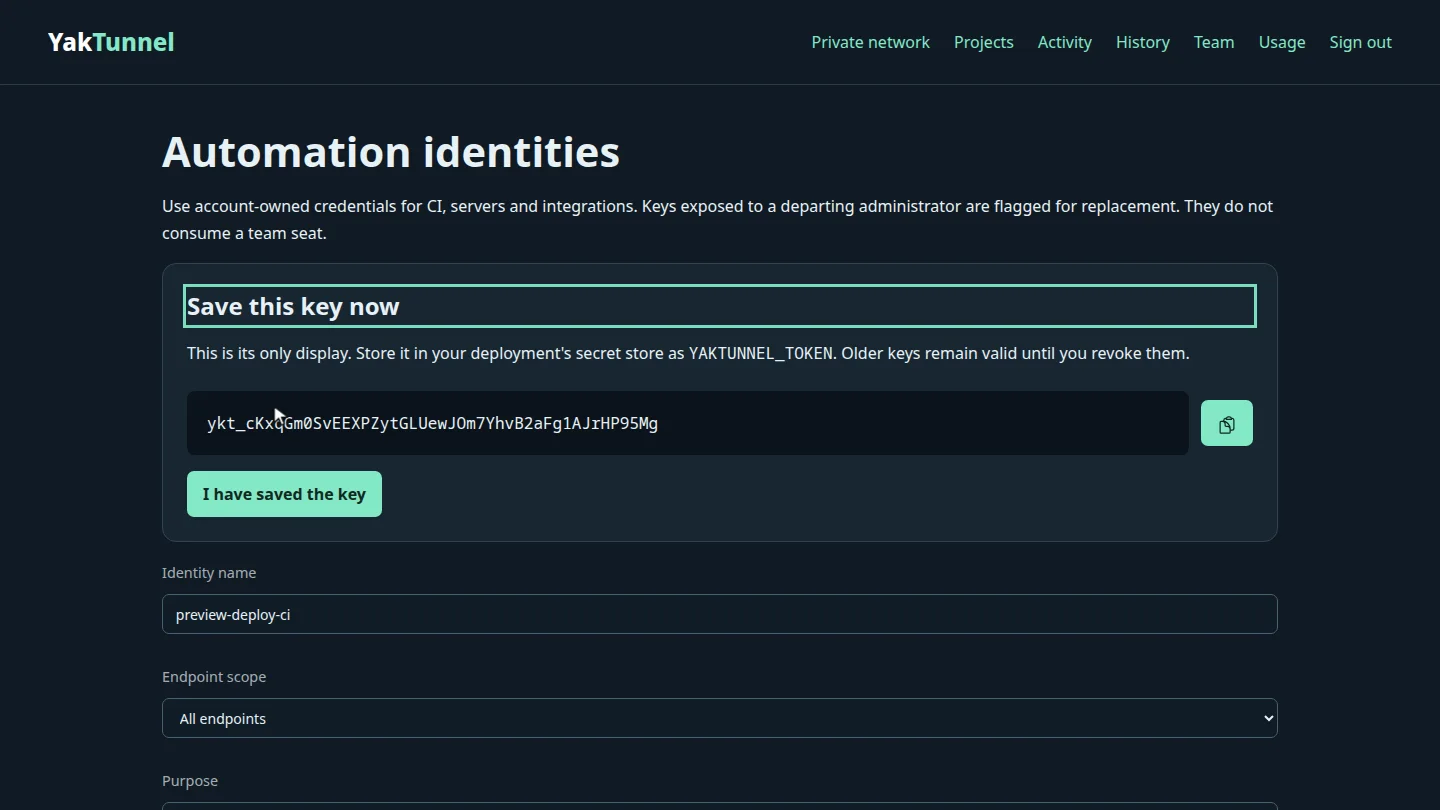
Confirm ▶ 0:33
Select I have saved the key. The identity is listed as Enabled.
YAKTUNNEL_TOKEN.Next steps
Updated 2026-10-26
ci token YAKTUNNEL_TOKEN service account api key github actions tunnel