How to find a captured webhook in YakTunnel
A provider says it delivered a webhook and your app says it failed. Request history shows exactly what arrived, with headers, body and the status your app returned, so you can see why.
Before you start
- Request history turned on for the endpoint (see Turn on request history)
Plays silently with captions; the narrated version is on its way.
Transcript
When a provider reports a failed delivery, find that webhook in YakTunnel and see exactly what your app received.
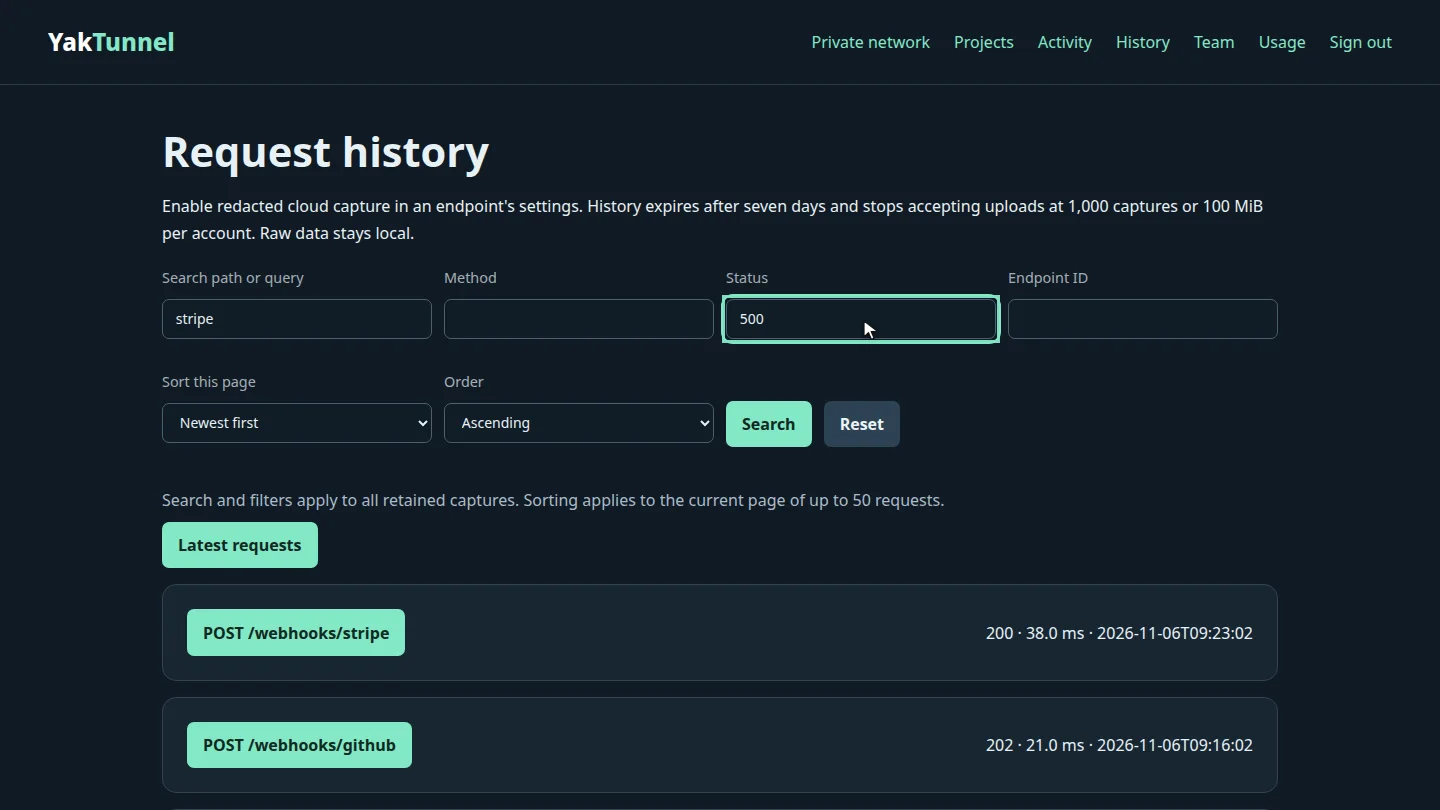
Open History. Search for stripe, and enter five hundred in Status to see only failed deliveries.
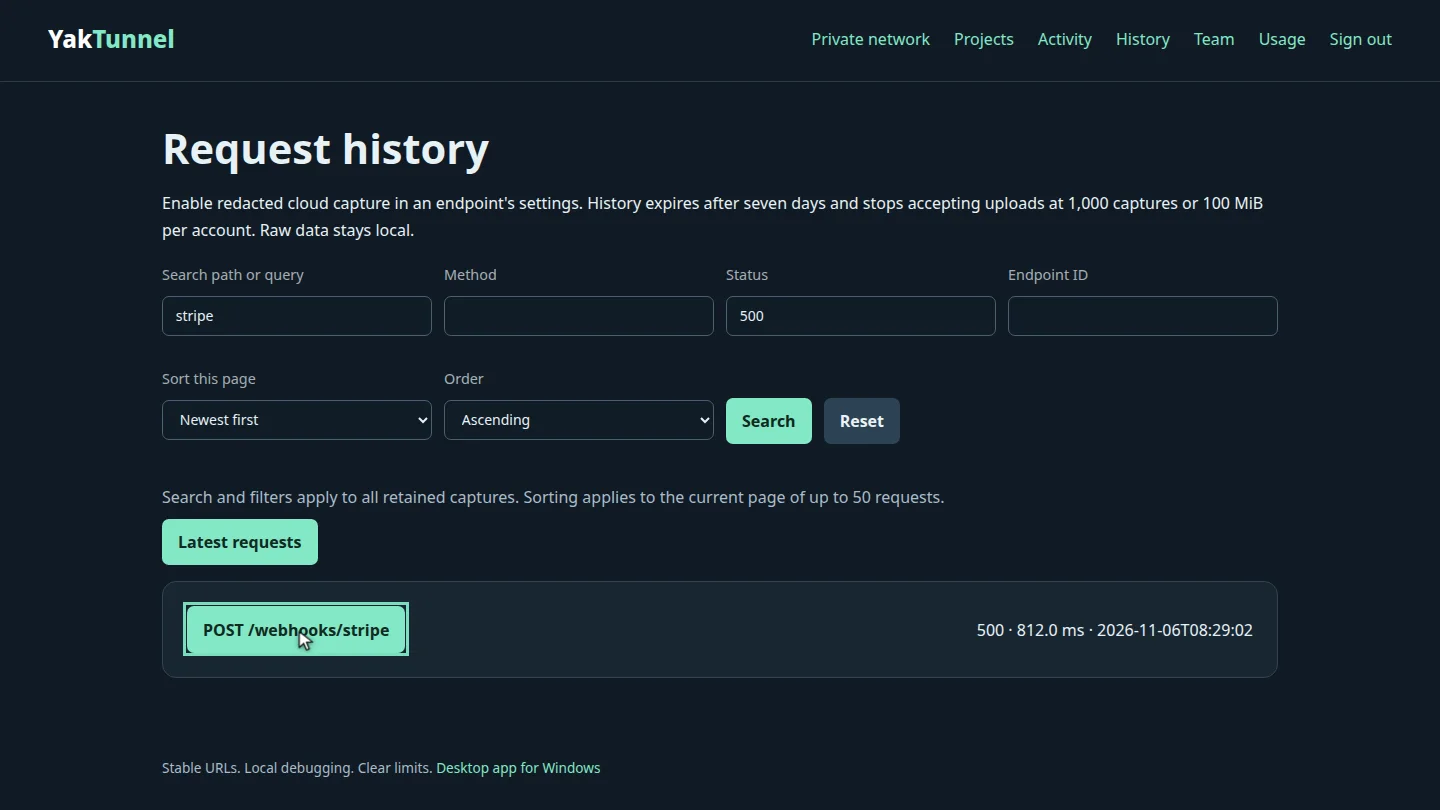
Select Search. One request matches: a Stripe webhook that took eight hundred milliseconds and returned five hundred.
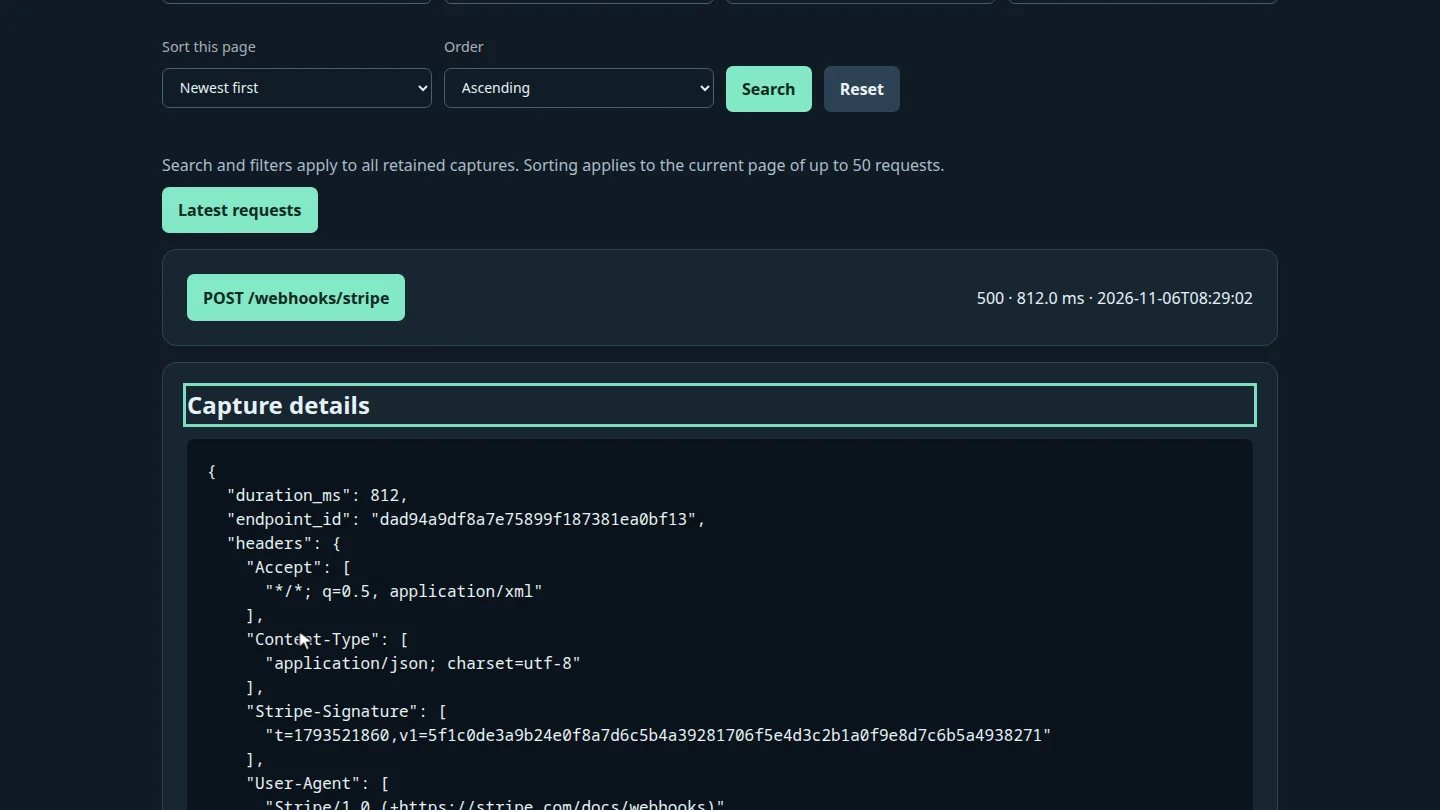
Select the request. Capture details shows its headers and body. Here, an invoice payment failed event your handler couldn't process.
Steps
Filter the history ▶ 0:09
In History, enter part of the path in Search path or query and a code in Status.
Run the search ▶ 0:16
Select Search. Each result shows the method and path, then the status, duration and time.
Open the capture ▶ 0:25
Select the request. Capture details shows its headers, body and response.
Next steps
Updated 2026-10-26
webhook debugging stripe webhook failed request inspector 500 error webhook