How to reserve a stable URL in YakTunnel
A preview link that changes every time you restart your laptop is useless in a client email or a webhook setting. Reserving an endpoint gives you a URL that stays the same every time you connect it.
Before you start
- A YakTunnel account with room for another endpoint (Free 3, Solo 10, Team 25)
Plays silently with captions; the narrated version is on its way.
Transcript
Reserve a YakTunnel address that stays the same every time you connect.
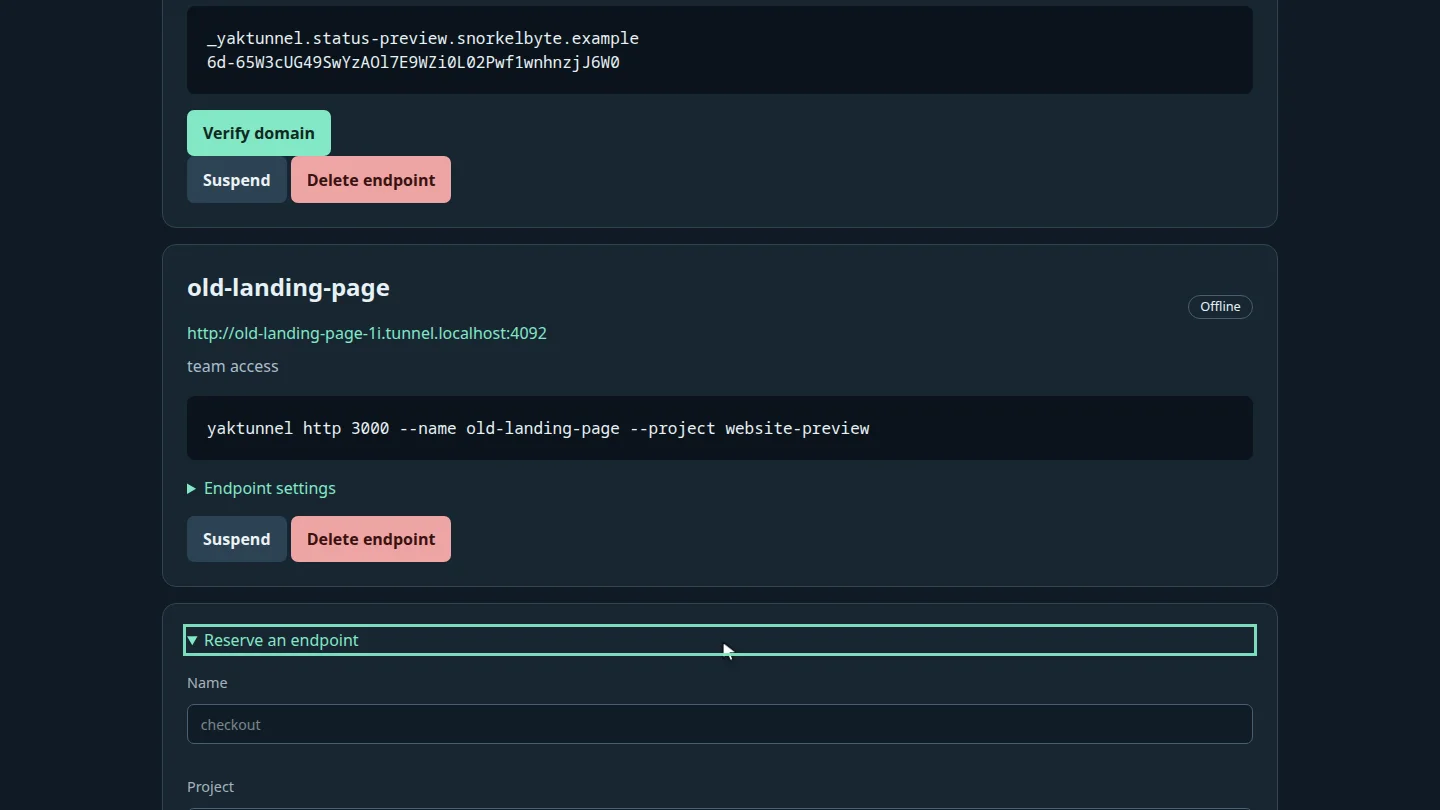
On Projects, open Reserve an endpoint, below your list of endpoints.
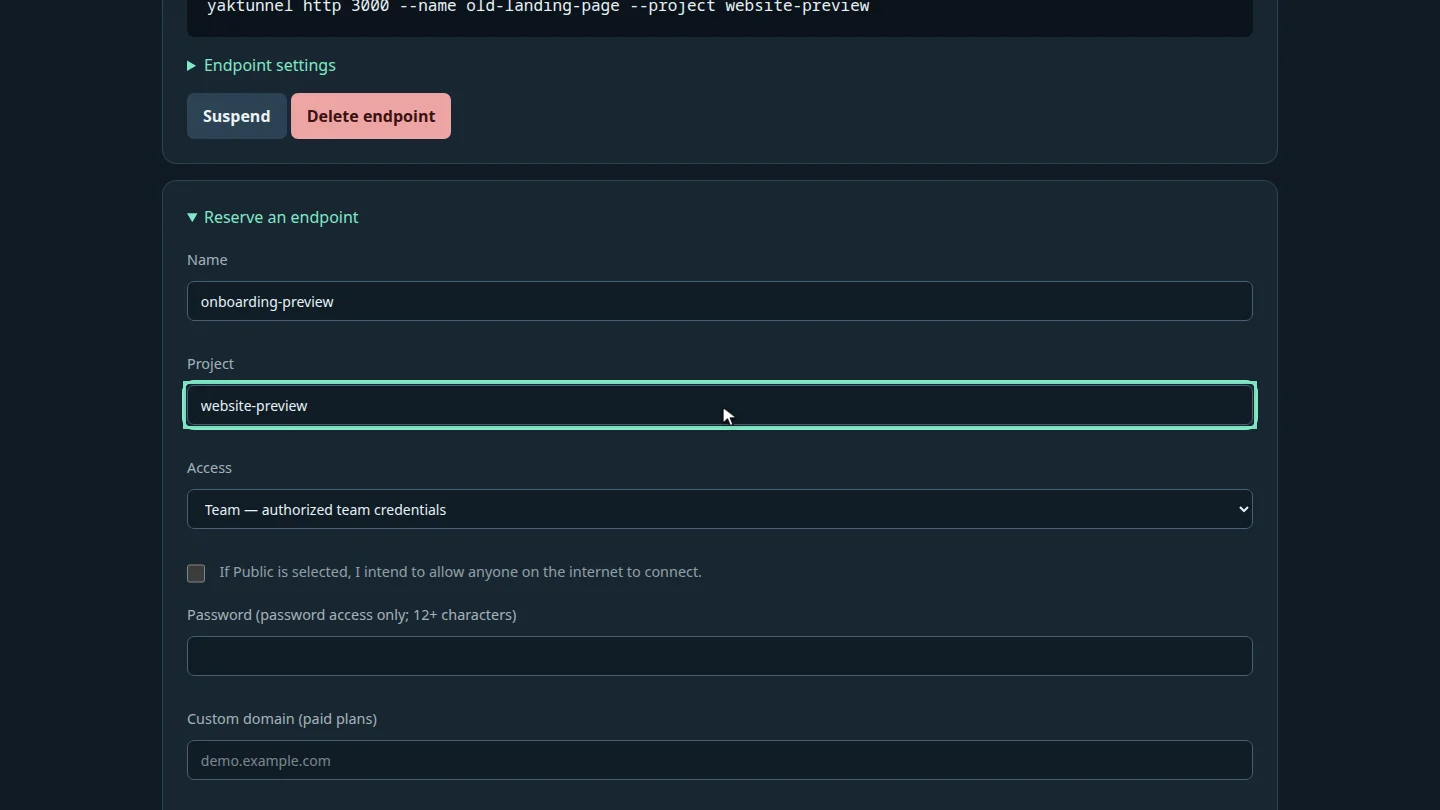
Enter a name, which becomes part of the URL, and a project that groups it with related previews.
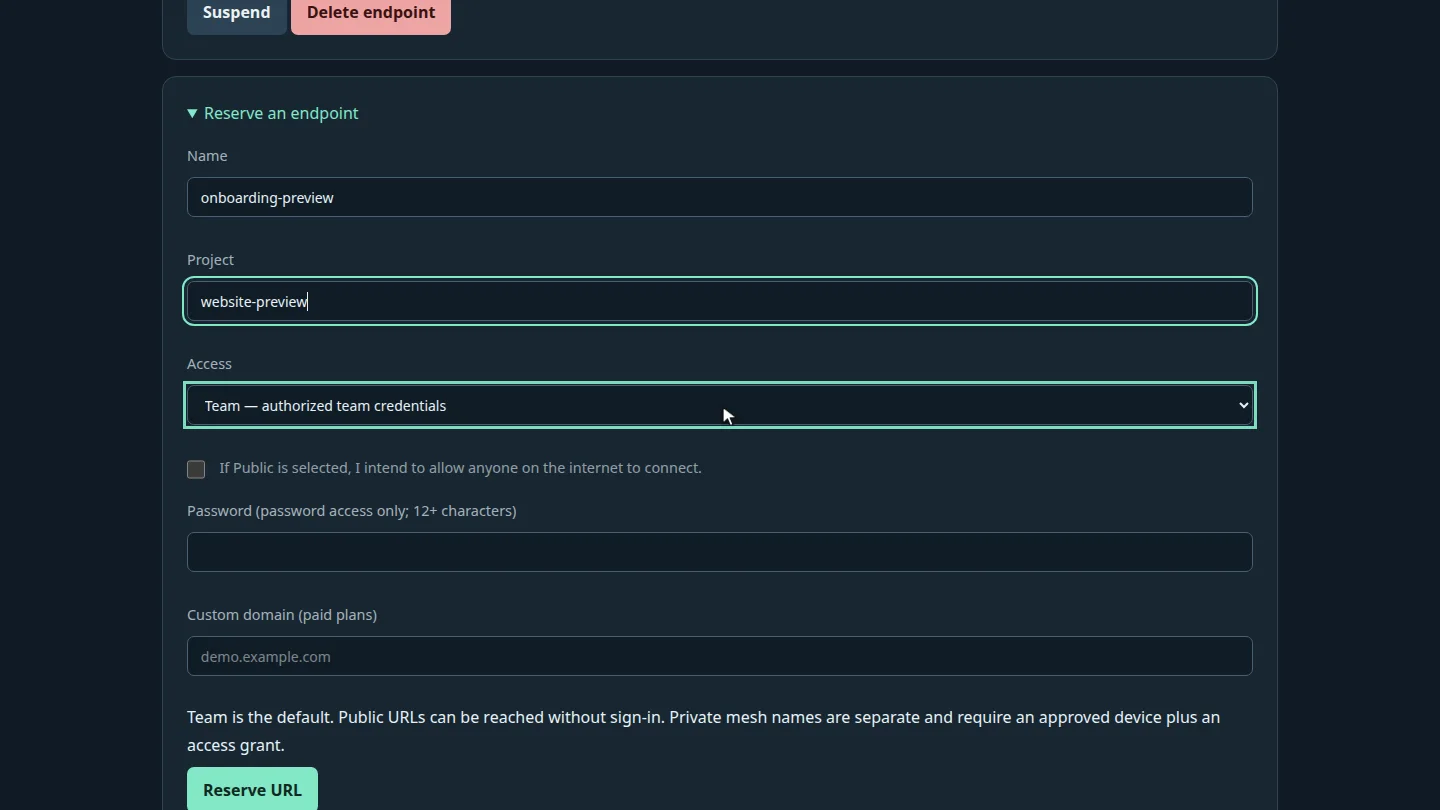
Access starts on Team, so only your signed-in teammates can open it. Choose Password to share with a client, or Public for webhooks.
Select Reserve URL. The endpoint joins your list with its permanent address and the command that connects it. It stays Offline until you run that command.
Steps
Open the reservation form ▶ 0:06
In Projects, select Reserve an endpoint below your endpoints.
Name it ▶ 0:11
Enter a Name and a Project. The name becomes part of the URL.
Choose who can open it ▶ 0:18
Keep Access at Team — authorized team credentials, or choose Password or Public. Public also needs the confirmation box ticked.
Reserve it ▶ 0:28
Select Reserve URL. The new endpoint shows its URL, an Offline badge and the
yaktunnel httpcommand to connect it.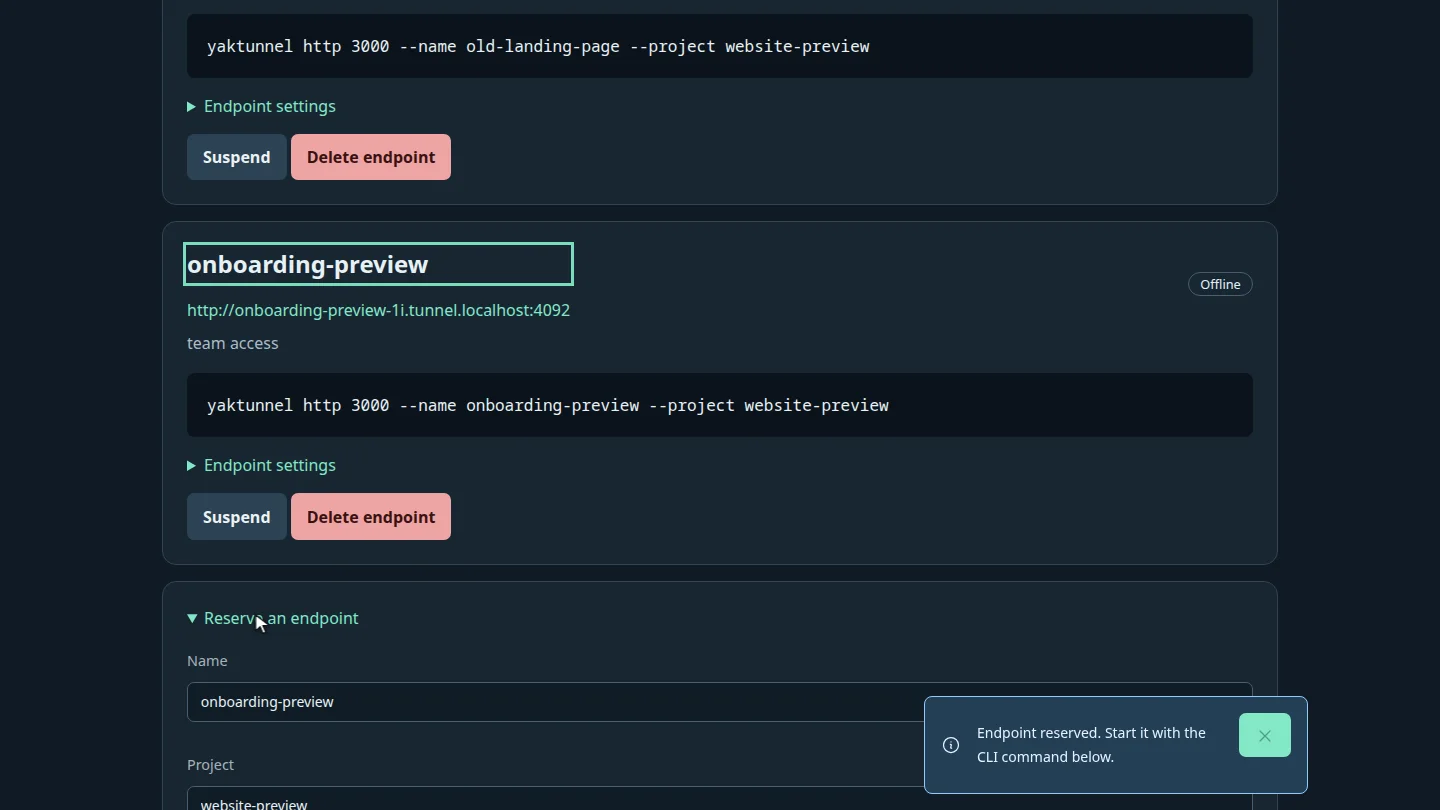
Next steps
Updated 2026-10-26
persistent tunnel url reserved subdomain stable localhost url ngrok alternative