How to suspend and resume an endpoint in YakTunnel
Sent a preview link to the wrong person, or want a demo closed between meetings? Suspending blocks the endpoint straight away without losing its URL; resume it when you're ready.
Before you start
- An administrator role
Plays silently with captions; the narrated version is on its way.
Transcript
Close a preview link instantly and reopen it later at the same address.
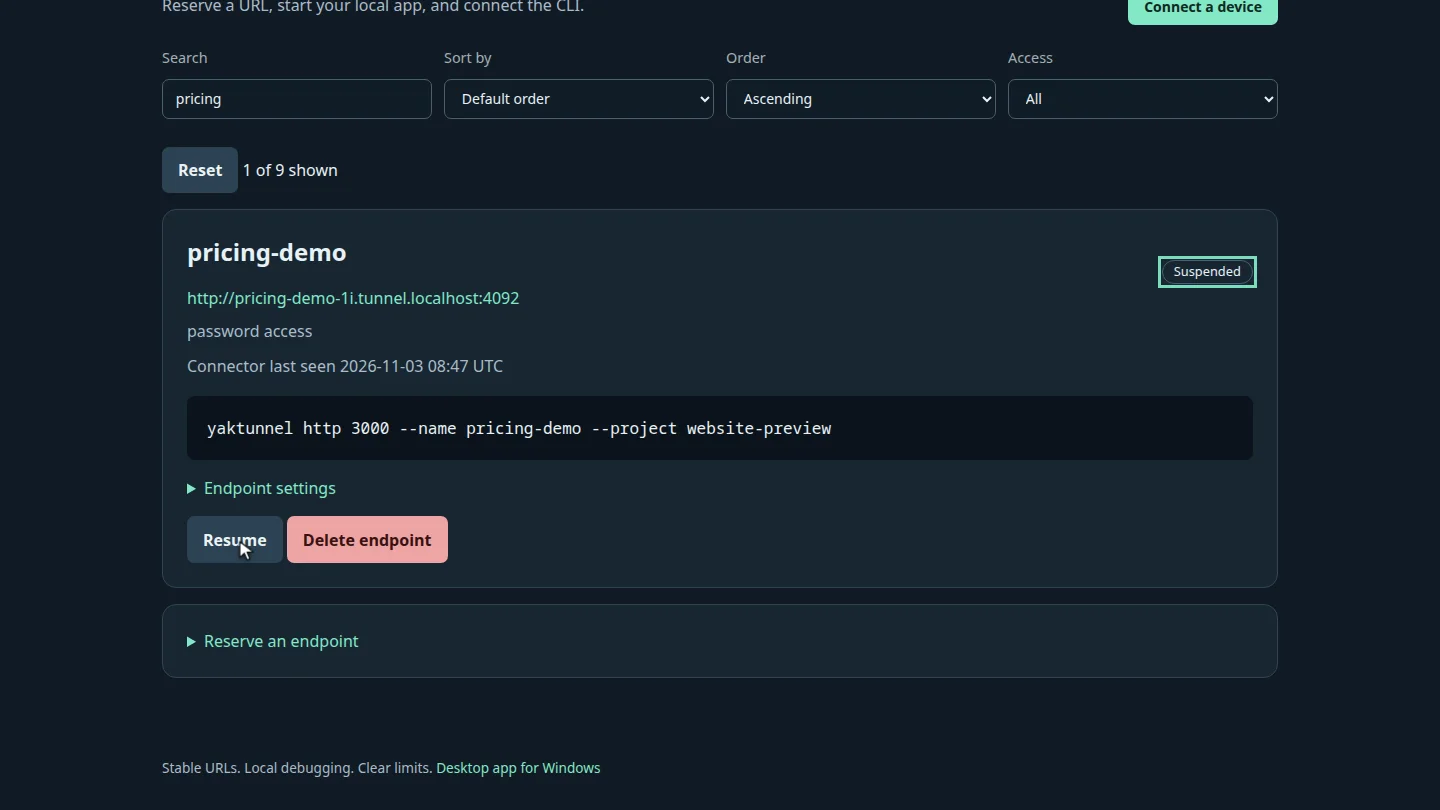
Search for the endpoint, then select Suspend. Its badge changes to Suspended.
When you're ready to share it again, select Resume. The same URL works straight away, with nothing to reconfigure.
Steps
Suspend it ▶ 0:06
In Search, enter the endpoint's name, then select Suspend on its card. The badge changes to Suspended.
Resume it ▶ 0:12
Select Resume on the same card.
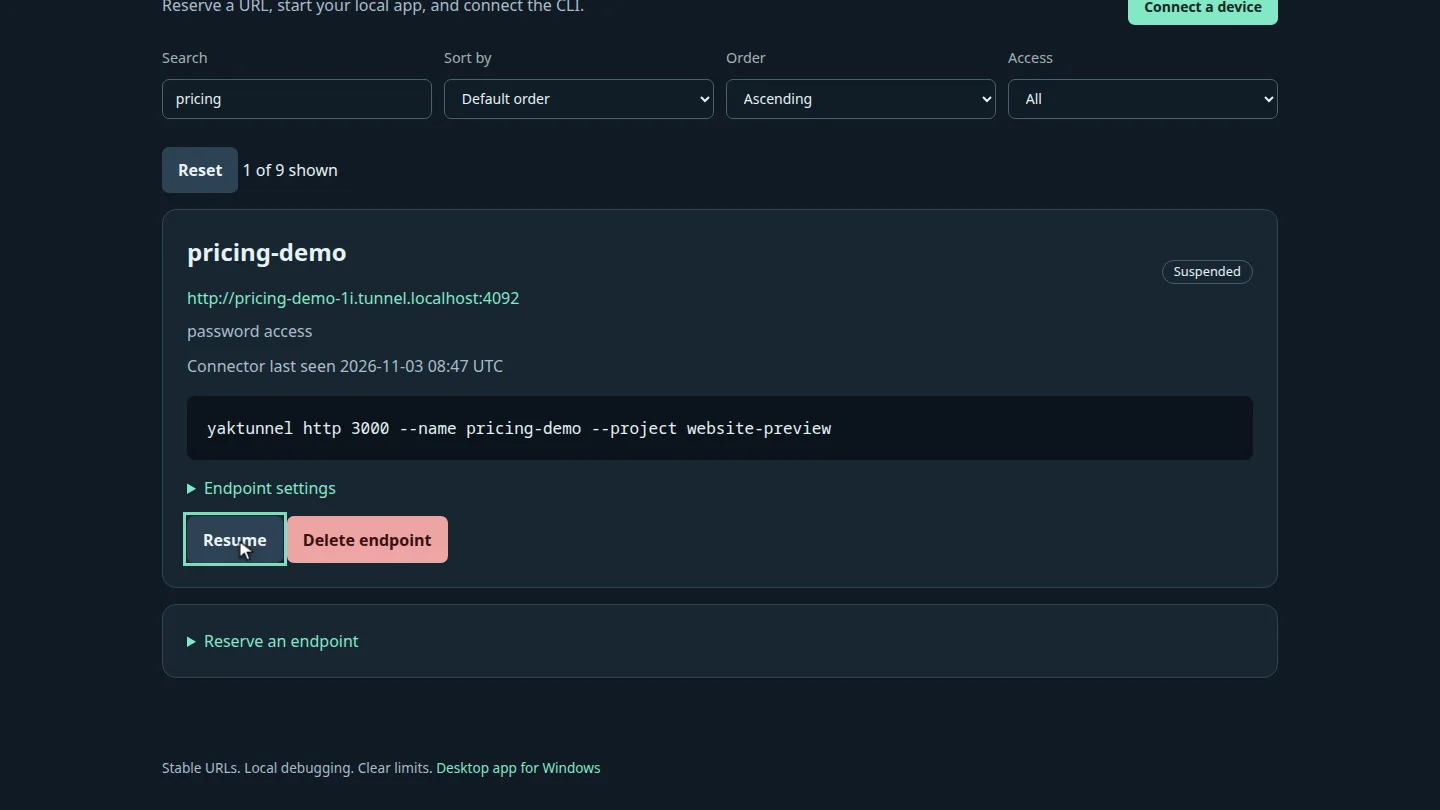
ResultA suspended endpoint shows Suspended; Resume turns it back on with the same URL.
Next steps
Updated 2026-10-26
disable tunnel pause preview block access